Simple Trick to Turn off all system beeps

    If you want to turn off all system beeps (like the ones that go through your computers' internal speaker):

Start Regedit

Go to HKEY_CURRENT_USER\Control Panel\Sound

Edit the key Beep and give it a value of No

Boost Windows Xp Speed Upto 60%

Whenever you start your computer, you are faced with a few moments of thumb twiddling while Windows XP boots and prompts you to log on. Although you should expect to wait for a few moments, sometimes Windows XP seems to boot rather slowly. In fact, you may notice that over a period of time the PC that used to roar to life seems a bit sluggish instead. Fortunately, you can perform several techniques that help Windows XP get the bootup speed you want. This chapter explores how to put these techniques to work.

Some of the things may already have been discussed in some threads earlier

Stopping Unneeded Startup Services

Along with the core operating system and programs that Windows XP runs when it starts, there is also a host of services involved. Many of these services are necessary for Windows XP to operate correctly. However, many of them are for features in Windows XP that you may not use at all. You can peruse the services and disable any service that you do not want to run. The fewer services that run, the more quickly Windows XP will boot.

Caution: Exercise caution when stopping services. If you do not know what a service does or are unsure of the ramifications of stopping the service, leave it alone. Some services are critical to Windows XP's operations, so make sure you understand what the service is before you disable it.

To reduce the number of services that start on bootup, you can access two different areas of Windows XP. The first is the System Configuration Utility. The Services tab shows you the services that start when the computer boots.

You can stop a service from starting by simply clearing the check box next to the service and clicking OK. However, before you do so, there is another way to disable services that you may prefer because the interface gives you more information about the service in question.

Open Control Panel/Administrative ToolsServices or else select Start/Run, type services.msc, and click OK. Either way, you see the Services console.

I prefer to use the Services console instead of the System Configuration Utility because it describes what the service does. Additionally, you can double-click a service and examine its properties.

Notice the Startup Type column in Figure 4-2. This information lists whether the service is automatic or manual. Manual services are only started in Windows XP when you start a process that requires the service. Some other process may require the service that has a "dependency" relationship with it; in this case, the dependency service will start, as well. Because these services do not start automatically when you boot Windows XP, you do not need to do anything with manual services.

However, all services listed as automatic start when Windows XP boots. These are the services that increase boot time. As I have mentioned, many of them are necessary and important, so you should not stop automatic services from booting unless you are sure of the ramifications. You can get this information by looking at the Description column. Here's a quick look at common services you may want to live without:

Automatic Updates: This service enables Windows XP to check the Web automatically for updates. If you don't want to use
Automatic Updates, you can disable the service. You can always check for updates manually at the Windows Update Web site.
Computer Browser: If your computer is not on a network, you don't need this service. If you are on a network, leave it alone.
DHCP Client: If you are not on a network, you do not need this service. If you are on a small workgroup, you can still increase boot time by configuring manual IP addresses (which I explore later in this chapter).
 
DNS Client: If you are not on a network, you do not need this service. If you are, leave it alone.

Error Reporting and Event Log: You don't have to use these services but they can be very helpful, so I would leave them configured as automatic.

Fax: If you don't use your computer for fax services, you can disable this one. Help and Support: If you never use the Windows XP

Help and Support Center (found on the Start menu), you can disable this service.

IMAPI CD-Burning COM: This service enables you to burn CDs on your computer. If you never burn CDs, you can disable the service.

Indexing Service: Your computer keeps an index of files but if you rarely search for files, the service is just a resource hog. You can stop it and turn the service to manual.

Windows Firewall/Internet Connection Sharing: If you do not use these features, you can disable them.

Infrared Monitor: If you do not use infrared devices, you can disable this service.

Messenger: This service sends alert messages on a local area network (it is not the same as Windows Messenger). If you are not on a network, you can disable this service.

Print Spooler: If you do not do any printing from the computer, you can disable this service. If you print, make sure you leave it as automatic.

Remote Registry: This service allows remote users to modify the Registry on your computer. If you are not on a network, you can disable this service.

System Restore Service: This service allows you to use System Restore. If you have turned off System Restore anyway, you do not need to turn off the service. If you do, you turn off System Restore.

Themes: If you do not use themes, you can disable this service.

Windows Image Acquisition: If you do not use scanners or digital cameras, you can disable this service.

Wireless Zero Configuration: If do not use wireless networking devices, you can disable this service.
You may have a number of other automatic services, depending on software and other configurations on your computer. So it's a good idea to look through the services and learn more about them. If you double-click a service, a Properties dialog box appears

Notice that on the General tab, you see a Startup Type drop-down menu. If you want to change an automatic service to manual, select Manual here and click OK. As a general rule, don't disable a service unless you are sure you will never use it.
 

However, manual configuration allows the service to be started when you find it necessary, thus speeding up your boot time. However, before you change a service to manual, look at the Dependencies tab (see Figure 4-4). This tab shows you which other services depend upon the service you are considering changing.

Keep in mind that services are necessary for the vast functionality you get with Windows XP. Change only those services that you understand and do not use. How you use your Windows XP computer should be the best guide in terms of optional startup services.

Tips:
The Indexing service and the System Restore service take up a lot of disk space and system resources across the board.
You can live without the Indexing service but I suggest that you keep using System Restore. It works great when you are in a bind and this is one case where the loss of speed may not be worth the ramifications of not using System Restore. Speed Tips and Tricks for Windows XP Startup Aside from startup programs, services, and the Prefetch folder, there are a number of other startup procedures and issues you can modify to help Windows XP start faster. The following sections explore those tips and tricks. Manual IP Addressing on Small Office/Home Networks Windows XP is configured to help you take care of networking. It uses the TCP/IP protocol for networking in workgroups, or what you might call small office or home networks that do not use a dedicated server. The problem is that automatic IP addressing can be slow. When your computer boots, it has to query the network to see what IP addresses are already in use and then assign itself one. If you want to speed up the boot time a bit, consider manually assigning IP addresses to all computers on the network. This way, the network computers do not have to worry about locating an automatic IP address. Because one is manually configured, the operating system doesn't have to spend time solving this problem. This isn't a networking book, however, so I won't delve into the implications of using a manual IP address, but if you are using a computer that functions as a host computer to the Internet (using Internet Connection Sharing [ICS]), you can get into connectivity problems if you change the configuration of the IP address. However, you can still work around this problem by starting with the ICS host computer. Select Start/Connect To/Show All Connections. Right-click your network adapter card and click Properties. On the General tab, select TCP/IP in the list of services and click the Properties button. In the TCP/IP properties, you can see if you use an automatic or manual IP address. In the example in Figure 4-5, I have configured a manual IP address of 90.0.0.1 and a default subnet mask. The other computers on my office network each use a different IP address in the same class, such as 90.0.0.2, 90.0.0.3, 90.0.0.4, and so on. This way, each computer has a permanent IP address, which helps increase boot time. Note that if you change the IP addresses of your computers, they must all use the same subnet mask. A default subject mask of 255.255.255.0 will keep you in good shape. Make sure you understand the implications of changing IP addresses on your network. If you have no networking experience at all, you may be wiser to leave the automatic IP addressing as is and try to gain some speed using the additional suggestions in this chapter. Disabling Recent Documents History Windows XP includes a feature that keeps track of all recent documents you have opened or used. The idea is that you can select Start/Recent Documents History and quickly reopen any document you have recently used. I use many documents each day and never use the feature myself. In my opinion, I can keep up with what I want to use without Windows XP doing it for me. The bad thing about Recent Documents History is that Windows XP has to calculate what should be put there each time you boot Windows, which can slow things down. So, if you never use the Recent Documents History, it's a good idea to disable it.

Here's how:
1. Open the Registry Editor (select Start/Run, type regedit, and click OK).
2. Navigate to HKEY_CURRENT_USER\Software\Mcft\Windows\ CurrentVersion\Policies\Explorer.
3. Create a NoRecentDocsHistory D_WORD key. Double-click the value to open it once it is created.
4. Set the Data Value to 1 to enable the restriction.
5. Click OK and close the Registry Editor. You'll need to restart the computer for the change to take effect. Disabling the Boot Logo You can remove the boot logo that appears when you start Windows XP. This little tweak probably shaves only a few seconds off your boot time but seconds count if you are serious about trying to get Windows XP up and running as quickly as possible. The only negative is that if you remove the boot logo, you will also not see any boot messages, such as check disk. (But if you are not having problems with your computer, this isn't such a big deal.)
To remove the boot logo, follow these steps:
1. Select Start/Run, type msconfig, and click OK.
2. In the System Configuration Utility, click the BOOT.INI tab.
3. On the BOOT.INI tab, click the NOGUIBOOT check box option. Click OK. Removing Unwanted Fonts One trick that increases your boot time a bit is to lose any fonts in the Fonts folder in Control Panel that you never use. The more fonts you have, the more processing Windows XP has to do to prep all of those fonts for use. You must be a bit careful here to not remove fonts that you might want, but there is a good chance that you can live without many of them. For instance, you may have foreign language fonts and other symbol fonts (such as Wingdings) that you never use. To delete unneeded fonts, follow these steps:
1. Open the Fonts folder in Control Panel.
2. Select Edit/Select All and then Edit/Copy.
3. Create a new folder on your desktop, open it, and select Edit/Paste.
4. In this new folder, delete any of the fonts you do not want.
5. Return to the Fonts folder in Control Panel. Right-click the selected fonts and click Delete.
6. Go back to your new desktop folder and click Edit/Select All.
7. Return to your Fonts folder and click Edit/Paste. You now have only the desired fonts in the Fonts folder. Tip: You can directly delete fonts from the Fonts folder without creating the secondary folder. However, I recommend the preceding steps to help ensure that you do not make a mistake in the deletion process. Stopping Remote Assistance and Remote Desktop Sharing In Windows XP Professional, you have two remote networking features called Remote Assistance and Remote Desktop Sharing. These remote networking features are very helpful in a variety of situations but if you don't use them, it is good idea to disable them to save boot time. You can always enable them later if you want to use them. Note: If you are interested in using Remote Desktop or Remote Assistance, see my book Windows XP for Power Users: Power Pack published by John Wiley & Sons.
1. Open the Start menu, right-click My Computer, and choose Properties.
2. Click the Remote Tab.
3. Clear both check boxes to disable Remote Assistance and Remote Desktop. Speeding Up the Dual-Boot Timeout If you dual-boot your computer with Windows XP and another operating system, you see an operating system selection menu on startup. If you typically boot into Windows XP and not the other operating system, you can speed up the dual-boot timeout value so that you do not wait so long for the boot process to select your default operating system and continue with the boot process. The default timeout value is 30 seconds but you can change this setting to 10. This gives you enough time to select the alternate operating system if you want but also speeds up the boot process. You can skip this section if you do not use a dual-boot configuration.
Follow these steps:
1. Locate the boot.ini file on your computer. It is a hidden file by default; mine is located in C:\boot.ini.
2. Open the file with Notepad (which is what opens it by default).
3. Change the Timeout value to 10 (see Figure 4-11).
4. Select File/Save and close Notepad. Speeding Up Your PPPoE Connection If you use a Point-to-Point Protocol connection over Ethernet (PPPoE), you may notice a delay in using the PPPoE connection after startup. By default, there is a 120 second delay but you can stop this behavior by manually configuring an IP address for the network adapter card. If you do not use a PPPoE connection, you can skip this section.
1. Select Start/Connect to/Show All Connections.
2. Open the TCP/IP properties for your LAN network interface card.
3. Manually set the IP address on the TCP/IP properties to an appropriate IP address and subnet mask for your network. Reducing the Wait Time When you start to shut down Windows XP, it has to quit, or "kill," any live applications or processes that are currently running. So close all applications first. However, some applications and processes are always running in the background. You can reduce the amount of time that Windows XP waits for those applications and processes to close before Windows XP kills them. Edit three different Registry settings to change this:
1. Open the Registry Editor.
2. Navigate to HKEY_CURRENT_USER\Control Panel\Desktop. Select WaitToKillAppTimeout and set the value to 1000.
3. Select the HungAppTimeout value and set it to 1000 as well. 4
. Navigate to HKEY_USERS\.DEFAULT\Control Panel\Desktop. Set the WaitToKillAppTimeout and set the value to 1000. Select the HungAppTimeout \newline value and set it to 1000 as well.
5. Navigate to HKEY_LOCAL_MACHINE\System\CurrentControlSet\Contro l. Select the WaitToKillServiceTimeout value and set it to 1000.
6. Close the Registry Editor. Automatically Killing Tasks on Shutdown You know the drill. You start to shut down the computer, you wait a few moments, and then you see a dialog box asking if you want to kill an application or service that is running. Instead of prompting you, you can make Windows XP take care of the kill task automatically. Here's how:
1. Open the Registry Editor.
2. Navigate to HKEY_CURRENT_USER\Control Panel\Desktop.
3. Highlight the value AutoEndTasks and change the value to 1.
4. Close the Registry Editor.

Increase your RAM and so system speed

1). Start any application, say Word. Open some large documents.

2). Press
CTRL+SHIFT+ESC to open Windows Task Manager and click Processes tab and sort the list in descending order on Mem Usage. You will notice that WINWORD.EXE will be somewhere at the top, using multiple MBs of memory.
 
3). Now switch to Word and simply minimize it. (Don't use the Minimize All Windows option of the task bar).
 
4). Now go back to the Windows Task Manager and see where WINWORD.EXE is listed. Most probably you will not find it at the top. You will typically have to scroll to the bottom of the list to find Word. Now check out the amount of RAM it is using. Surprised? The memory utilization has reduced by a huge amount.
 
5). Minimize each application that you are currently not working on by clicking on the Minimize button & you can increase the amount of available RAM by a substantial margin. Depending upon the number and type of applications you use together, the difference can be as much as 50 percent of extra RAM.
                In any multitasking system, minimizing an application means that it won't be utilized by the user right now. Therefore, the OS automatically makes the application use virtual memory & keeps bare minimum amounts of the code in physical RAM.

Unlock Your Files or Folder with Free Unlocker!

Even get rid of error message like Error deleting file or folder, cannot delete folder: it's being used by another person or program? Now, you can use this freeware to solve that problem: Unlocker!


Unlocker is a very useful Windows Explorer extension allowing users with a simple right-click on a file or folder to easily get rid of error message such as error deleting file or folder, cannot delete folder: it's being used by another person or program.

Helps delete locked files with error messages like:
Cannot delete file: Access is denied
There has been a sharing violation.
The source or destination file may be in use.
The file is in use by another program or user.
Make sure the disk is not full or write-protected and that the file is not currently in use.

Unlocker 1.8.5 is 100% FREE, which means it is a freeware product (both for personal and commercial use) that does not contain any form of malware, including but not limited to: spyware, viruses, trojans and backdoors.

This software product was tested thoroughly and was found absolutely clean, therefore it can be installed with no concern by any computer user.

You can download Unlocker, now on version 1.85 at Here, and reach more info on its site.

Top 10 mac tricks for you

We noticed that this five year-old article continues to get a lot of attention, so we recently asked Brian Jepson to update the sections that have become dated. Here's his update of this "oldie but goodie."

It's been a few years since the release of the book I co-wrote with Ernie Rothman, Mac OS X for Unix Geeks, and I see that a few things have changed since I originally offered the top 10 tips that I gathered while working on the book. These tips will show you the differences between Mac OS X and other flavors of Unix; help you find the bits that resemble the Unix you are used to; and even feather your nest with ports of popular open source applications.
1. Where's My Shell?

A Unix geek won't get too far without a shell, right? You can find the Terminal application by navigating to /Applications/Utilities in the Finder. Drag the Terminal application to your dock so you can access it quickly.

When you start up the Terminal, you'll be greeted with the default user shell, tcshbash. You can customize the Terminal's appearance and settings by selecting Window Settings from the Terminal menu. You can set the startup shell by selecting Preferences from the Terminal menu.
2. Sudo, Not Su

By default, the root user is disabled on Mac OS X. If you need to do something as root, use the sudo command. To use this command, pass in the command and arguments you want to execute, as in: sudo vi /etc/hostconfig. You'll need to be a user with Administrative privileges. The main user has this capability by default.

If you need a root shell, you can always use sudo tcsh or sudo bash. If you want to enable the root user, it's as simple as giving root a password with sudo passwd root. You'll also want to open System Preferences, choose Accounts, then Login Options and change Display Login Windows as: to Name and password. Then you can log out and log in as the root user.
To get compilers and many other development tools, you'll need the Mac OS X Developer Tools. If you bought the boxed version of Mac OS X, the Developer Tools should be included on a separate CD-ROM. If you bought a new Macintosh that came with Mac OS X preinstalled, the Developer Tools installer will probably be in /Applications/Installers. Failing either of those, or if you'd like to get the latest version of the tools, they are available to Apple Developer Connection (ADC) members.

3. Startup

Mac OS X startup is nothing like other Unix systems. Most significantly, Mac OS X has nothing like the /etc/init.d directory. Instead, it finds its startup items via /System/Library/StartupItems (for system startup items) or /Library/StartupItems the launchd startup program. You can read all about it in this ADC article.
4. Filesystem Layout

If you open up a Finder window to the top-level of your hard drive, you'll see that familiar friends like /var and /usr are missing. They are actually hidden (more on that later). If you open up a Terminal shell and do an ls /, you'll see the missing folders, as well as a few others, such as /Library and /Developer.

The following table lists some of these folders that you'll see (Appendix A of Mac OS X for Unix Geeks contains a more comprehensive list):
File or Directory
Description

.DS_Store
This file contains Finder settings.

.Spotlight-V100
This file contains Spotlight settings.

.Trashes
This directory contains files that have been dragged to the Trash.

.fseventsd
Used by the File System events framework.

.hotfiles.btree
This is used by Mac OS X's Hot-File-Adaptive-Clustering feature to keep track of frequently used files.

.vol/
This directory maps HFS+ file IDs to files.

Applications/
This directory holds all your Mac OS X applications. Check out its Utilities/ subdirectory for lots of fun stuff!

Desktop DB, Desktop DF
The Classic Mac OS desktop database.

Desktop Folder/
The Mac OS 9 desktop folder.

Developer/
Apple's Developer Tools and documentation. Only available if you have installed the Developer Tools.

Library/
Support files for locally installed applications, among other things.

Network/
Network-mounted Application, Library, and Users directories, as well as a Servers directory.

Shared Items/
Use by Mac OS 9 to share items between users.

System Folder/
The Mac OS 9 System Folder.

System/
Contains support files for the system and system applications, among other things.

Temporary Items/
Temporary files used by Mac OS 9.

TheVolumeSettingsFolder/
This directory keeps track of details such as open windows and desktop printers.

Trash/
Mac OS 9 trash folder.

Users/
Home directories.

VM Storage
Mac OS 9 virtual memory file.

Volumes/
Contains all mounted filesystems.

automount/
This directory handles static NFS mounts.

bin/
Contains essential system binaries.

cores/
If core dumps are enabled (with tcsh's limit and bash/sh's ulimit commands), they will be created in this directory as core.pid.

dev/
This directory contains files that represent various devices.

etc/
This directory contains system configuration files.

mach
This is a symbolic link to the /mach.sym file.

mach.sym
Kernel symbols.

mach_kernel
The Darwin kernel.

private/
Contains the tmp, var, etc, and cores directories.

sbin/
Executables for system administration and configuration.

tmp/
Temporary files.

usr/
This directory contains BSD Unix applications and support files.

var/
This directory contains frequently modified files such as log files.


5. Different Kinds of Hidden Files

As with other Unix flavors, you can make a file invisible by prefixing its name with a ., as in /.vol. This has the effect of making it invisible in the Finder, as well as when you issue an ls without the -a option.


Mac OS X also uses a file in the root directory (.hidden) to maintain a list of files that should be hidden from the Finder.

Also, HFS+ (the filesystem used by Mac OS) files and directories can have a hidden attribute set using the SetFile command, as in SetFile -a V SomeFile. (The SetFile command is available in /Developer/Tools after you install the Mac OS X Developer Tools package described in the sidebar.) This setting won't take effect until you relaunch the Finder. You can log out and log in again or use the Force Quit option from the Apple menu. You can turn off the invisible bit with SetFile -a v SomeFile. See the manpage for SetFile for more details. (Note that invisible files are only invisible from the Finder; you can still see them with ls.)
6. Aliases and Links

There are two ways to create links to files. The first is to select the file in the Finder, and drag it to a new location while holding down the Option and Command keys (or select Make Alias from the File menu). This creates a Mac OS alias that Cocoa, Carbon, and Classic applications can follow. However, Unix applications will ignore those links, seeing them as zero-byte files.

You can also create a link with ln or ln -s. If you use this kind of link, Unix, Cocoa, Carbon, and Classic applications will happily follow it.
7. X11

Mac OS X does not come with the X Window System. For native applications, it uses an advanced graphics system called Aqua. But if you want to run X11 applications, you're in luck: Apple has its own X11 implementation with nice Aqua integration, and there is an installer for it on your Mac OS X installation CD-ROM or DVD. If it wasn't installed by default, run the Optional Installs package on your install disc. You'll be able to run X11 applications side-by-side with Mac OS X applications, and they'll look great.
8. Fink

Are there some Unix or Linux applications that you're missing? Check out the Fink project, which modifies open source applications so they'll compile and run on Mac OS X. Fink already includes an impressive array of applications, and more are on the way.
Related Reading

Mac OS X for Unix Geeks
By Brian Jepson, Ernest E. Rothman

+
9. /etc is Not Always in Charge

If you've come to Mac OS X from another Unix, you may expect that you can add users and groups to the /etc/passwd and /etc/group files. By default, Mac OS X only uses these file in single-user mode. If you want to add a user or group, it will need to go into the Directory Services database, a repository of local directory information. For more information, see this ADC article,Open Directory and the dscl Tool.
10. Shutdown Doesn't Really

For a long time, Mac OS X couldn't execute custom actions at shutdown. The SystemStarter framework (which predates launchd) can perform custom shutdown actions when the system is shutting down. For more information, see "Start Me Up: Writing and Understanding OS X StartupItems" (the ADC launchd article mentions that services that need an explicit shutdown procedure will need the old SystemStarter framework)

How To Make A Bootable Windows USB Flash Disk

1. Does your computer support booting from USB?

Usually, if its an option in your BIOS boot sequence menu, the answer to this is yes. If its not there, look for BIOS updates. If you are not sure, proceed and see what happens

2. Sorting out the "Bootability" of your USB-Drive

Connect your USB drive to your computer, directly, without a Hub. Then, shut down your computer, disconnect any other hard disk drives from it, and insert your original Windows XP CD into the drive. Start the installation, and proceed to the section where you are allowed to pick a hard drive. If it goes beyond the partition selection, your drive is already fine for booting Windows XP. If not (seems to be the cases with many of the Freecom USB HDDs for example), you will get an error like "Windows is unable to find your drive, partition, data etc bla". This is usually not a big problem.


All you need to do is "properly" format the drive. Reboot into your normal Windows, and get this HP tool , and use it to format your HDD completely. I chose NTFS format, worked fine everytime i tried. After this, my drives are recognized as valid installation devices by the Windows XP installer.
(In fact, i did not manage to create a USB primary partition with FAT32 that was recognized as being installable)


3. Dumping the original Windows CD into an ISO File

Pretty easy one. Simply open WinISO, and select Actions -> Make ISO from CDROM, and save your CD image.

4. Extracting the files we need to work on

After the CD dump is done, close and reopen WinISO. Then, open the ISO file you just created using File -> Open.
Now, click the I386 folder, and select the following files (Ctrl key to multi-select)

TXTSETUP.SIF
DOSNET.INF
USB.IN_
USBPORT.IN_
USBSTOR.IN_

Select Actions -> Extract and put the resulting files into some folder to work on them.

5. Unpacking IN_ files

Use the Cab SDK (from the command line) for extracting the contents of the .IN_ files. Each of them contains exactly one .inf file. If you are unsure how to use the Cab SDK, here is an example command line:

cabarc x USBSTOR.IN_

You should end up with three new files in the folder, called:

usb.inf
usbport.inf
usbstor.inf

You can now delete the .IN_ files.

6. Editing the files

This is the main job. i ll also try to explain a bit whats happening. Use a simple Texteditor like Notepad.

TXTSETUP.SIF

This file is loaded on the initial install step by the Windows XP CD installer. In this file, we will change the way Windows treats USB devices during system setup -- the default is to only treat them as input devices during installation -- we will change this to include mass storage driver support (which needs to be loaded into the installer much earlier in order to work).

First, move the following entries from [InputDevicesSupport.Load] to the [BootBusExtenders.Load] section , as shown here


    [BootBusExtenders.Load]
    pci = pci.sys
    acpi = acpi.sys
    isapnp = isapnp.sys
    acpiec = acpiec.sys
    ohci1394 = ohci1394.sys
    usbehci = usbehci.sys
    usbohci = usbohci.sys
    usbuhci = usbuhci.sys
    usbhub = usbhub.sys
    usbstor = usbstor.sys

    [InputDevicesSupport.Load]
    usbehci = usbehci.sys
    usbohci = usbohci.sys
    usbuhci = usbuhci.sys
    usbhub = usbhub.sys
    usbccgp = usbccgp.sys
    hidusb = hidusb.sys
    serial = serial.sys
    serenum = serenum.sys
    usbstor = usbstor.sys


... now the same for [BootBusExtenders] and [InputDevicesSupport]


    [BootBusExtenders]
    pci = "PCI-Bustreiber",files.pci,pci
    acpi = "ACPI Plug & Play-Bustreiber",files.acpi,acpi
    isapnp = "ISA Plug & Play-Bustreiber",files.isapnp,isapnp
    acpiec = "Integrierter ACPI-Controllertreiber",files.none,acpiec
    ohci1394 = "IEEE-1394-Bus-OHCI-konformer Anschlusstreiber",files.ohci1394,ohci1394
    usbehci = "Erweiterter Hostcontroller",files.usbehci,usbehci
    usbohci = "Open Hostcontroller",files.usbohci,usbohci
    usbuhci = "Universeller Hostcontroller",files.usbuhci,usbuhci
    usbhub = "Standard-USB-Hubtreiber",files.usbhub,usbhub
    usbstor = "USB-Speicherklassentreiber",files.usbstor,usbstor

    [InputDevicesSupport]
    usbehci = "Erweiterter Hostcontroller",files.usbehci,usbehci
    usbohci = "Open Hostcontroller",files.usbohci,usbohci
    usbuhci = "Universeller Hostcontroller",files.usbuhci,usbuhci
    usbhub = "Standard-USB-Hubtreiber",files.usbhub,usbhub
    hidusb = "HID-Parser",files.hidusb,hidusb
    serial = "Treiber fur seriellen Anschluss",files.none,serial
    serenum = "Enumerator fur seriellen Anschluss",files.none,serenum
    usbstor = "USB-Speicherklassentreiber",files.usbstor,usbstor
    usbccgp = "USB Generic Parent Driver",files.usbccgp,usbccgp


        Next, we also have to write several keys into the registry. Convieniently, the txtsetup.sif allows you to specify files that are parsed and instered into the registry at install time. Insert the following in the [HiveInfs.Fresh] section:


    [HiveInfs.Fresh]
    AddReg = hivedef.inf,AddReg
    AddReg = hivesys.inf,AddReg
    AddReg = hivesft.inf,AddReg
    AddReg = hivecls.inf,AddReg
    AddReg = hiveusd.inf,AddReg
    AddReg = dmreg.inf,DM.AddReg
    AddReg = usbboot.inf,usbservices


and also in [SourceDisksFiles]


    [SourceDisksFiles]
    usbboot.inf = 1,,,,,,_x,3,,3
    bootvid.dll = 1,,,,,,3_,2,0,0,,1,2
    kdcom.dll = 1,,,,,,3_,2,0,0,,1,2


Finally, save and close TXTSETUP.SIF. We are done with it.

DOSNET.INF

Now, open DOSNET.INF , and change the second [Files] section to look like this:


    [Files]
    d1,usbboot.inf
    d1,_default.pif
    d1,12520437.cpx
    d1,12520850.cpx


usb.inf

Change the bolded lines in the [StandardHub.AddService] and [CommonClassParent.AddService] sections:


    [StandardHub.AddService]
    DisplayName = %StandardHub.SvcDesc%
    ServiceType = 1 ; SERVICE_KERNEL_DRIVER
    StartType = 0 ; SERVICE_DEMAND_START
    ErrorControl = 1 ; SERVICE_ERROR_NORMAL
    ServiceBinary = %12%\usbhub.sys
    LoadOrderGroup = Boot Bus Extender

    [CommonClassParent.AddService]
    DisplayName = %GenericParent.SvcDesc%
    ServiceType = 1 ; SERVICE_KERNEL_DRIVER
    StartType = 0 ; SERVICE_DEMAND_START
    ErrorControl = 1 ; SERVICE_ERROR_NORMAL
    ServiceBinary = %12%\usbccgp.sys
    LoadOrderGroup = Boot Bus Extender


usbport.inf

Change the bolded lines in the [EHCI.AddService], [OHCI.AddService] , [UHCI.AddService] and [ROOTHUB.AddService] sections:


    [EHCI.AddService]
    DisplayName = %EHCIMP.SvcDesc%
    ServiceType = 1 ; SERVICE_KERNEL_DRIVER
    StartType = 0 ; SERVICE_DEMAND_START
    ErrorControl = 1 ; SERVICE_ERROR_NORMAL
    ServiceBinary = %12%\usbehci.sys
    LoadOrderGroup = Boot Bus Extender

    [OHCI.AddService]
    DisplayName = %OHCIMP.SvcDesc%
    ServiceType = 1 ; SERVICE_KERNEL_DRIVER
    StartType = 0 ; SERVICE_DEMAND_START
    ErrorControl = 1 ; SERVICE_ERROR_NORMAL
    ServiceBinary = %12%\usbohci.sys
    LoadOrderGroup = Boot Bus Extender

    [UHCI.AddService]
    DisplayName = %UHCIMP.SvcDesc%
    ServiceType = 1 ; SERVICE_KERNEL_DRIVER
    StartType = 0 ; SERVICE_DEMAND_START
    ErrorControl = 1 ; SERVICE_ERROR_NORMAL
    ServiceBinary = %12%\usbuhci.sys
    LoadOrderGroup = Boot Bus Extender

    [ROOTHUB.AddService]
    DisplayName = %ROOTHUB.SvcDesc%
    ServiceType = 1 ; SERVICE_KERNEL_DRIVER
    StartType = 0 ; SERVICE_DEMAND_START
    ErrorControl = 1 ; SERVICE_ERROR_NORMAL
    ServiceBinary = %12%\usbhub.sys
    LoadOrderGroup = Boot Bus Extender


usbstor.inf

Change / Add [USBSTOR.AddService] section to this:


    [USBSTOR.AddService]
    DisplayName = %USBSTOR.SvcDesc%
    ServiceType = 1
    StartType = 0
    Tag = 3
    ErrorControl = 1
    ServiceBinary = %12%\USBSTOR.SYS
    LoadOrderGroup = Boot Bus Extender


new file: USBBOOT.INF

Create a new file called USBBOOT.INF in the same directory as your other changed files, and put the following content into it:


    [usbservices]

    HKLM,"SYSTEM\CurrentControlSet\Services\USBSTOR","DisplayName",0x00000000,"USB Mass Storage Driver"
    HKLM,"SYSTEM\CurrentControlSet\Services\USBSTOR","ErrorControl",0x00010001,1
    HKLM,"SYSTEM\CurrentControlSet\Services\USBSTOR","Group",0x00000000,"System Reserved"
    HKLM,"SYSTEM\CurrentControlSet\Services\USBSTOR","ImagePath",0x00020000,"system32\DRIVERS\USBSTOR.SYS"
    HKLM,"SYSTEM\CurrentControlSet\Services\USBSTOR","Start",0x00010001,0
    HKLM,"SYSTEM\CurrentControlSet\Services\USBSTOR","Type",0x00010001,1

    HKLM,"SYSTEM\CurrentControlSet\Services\usbehci","DisplayName",0x00000000,"USB 2.0 Enhanced Host Controller Miniport Driver"
    HKLM,"SYSTEM\CurrentControlSet\Services\usbehci","ErrorControl",0x00010001,1
    HKLM,"SYSTEM\CurrentControlSet\Services\usbehci","Group",0x00000000,"System Reserved"
    HKLM,"SYSTEM\CurrentControlSet\Services\usbehci","ImagePath",0x00020000,"system32\DRIVERS\usbehci.sys"
    HKLM,"SYSTEM\CurrentControlSet\Services\usbehci","Start",0x00010001,0
    HKLM,"SYSTEM\CurrentControlSet\Services\usbehci","Type",0x00010001,1

    HKLM,"SYSTEM\CurrentControlSet\Services\usbhub","DisplayName",0x00000000,"USB2 Enabled Hub"
    HKLM,"SYSTEM\CurrentControlSet\Services\usbhub","ErrorControl",0x00010001,1
    HKLM,"SYSTEM\CurrentControlSet\Services\usbhub","Group",0x00000000,"System Reserved"
    HKLM,"SYSTEM\CurrentControlSet\Services\usbhub","ImagePath",0x00020000,"system32\DRIVERS\usbhub.sys"
    HKLM,"SYSTEM\CurrentControlSet\Services\usbhub","Start",0x00010001,0
    HKLM,"SYSTEM\CurrentControlSet\Services\usbhub","Type",0x00010001,1

    HKLM,"SYSTEM\CurrentControlSet\Services\usbuhci","DisplayName",0x00000000,"Microsoft USB Universal Host Controller Miniport Driver"
    HKLM,"SYSTEM\CurrentControlSet\Services\usbuhci","ErrorControl",0x00010001,1
    HKLM,"SYSTEM\CurrentControlSet\Services\usbuhci","Group",0x00000000,"System Reserved"
    HKLM,"SYSTEM\CurrentControlSet\Services\usbuhci","ImagePath",0x00020000,"system32\DRIVERS\usbuhci.sys"
    HKLM,"SYSTEM\CurrentControlSet\Services\usbuhci","Start",0x00010001,0
    HKLM,"SYSTEM\CurrentControlSet\Services\usbuhci","Type",0x00010001,1

    HKLM,"SYSTEM\CurrentControlSet\Services\usbohci","DisplayName",0x00000000,"Microsoft USB Open Host Controller Miniport Driver"
    HKLM,"SYSTEM\CurrentControlSet\Services\usbohci","ErrorControl",0x00010001,1
    HKLM,"SYSTEM\CurrentControlSet\Services\usbohci","Group",0x00000000,"System Reserved"
    HKLM,"SYSTEM\CurrentControlSet\Services\usbohci","ImagePath",0x00020000,"system32\DRIVERS\usbohci.sys"
    HKLM,"SYSTEM\CurrentControlSet\Services\usbohci","Start",0x00010001,0
    HKLM,"SYSTEM\CurrentControlSet\Services\usbohci","Type",0x00010001,1


7. Repack the inf files into their original IN_ format

If you have not already deleted your extracted .IN_ files, do so now. They need to be replaced. Open a DOS shell again, and navigate to the folder with your changed files. Then exceute the following commands:


    cabarc n USB.IN_ usb.inf
    cabarc n USBPORT.IN_ usbport.inf
    cabarc n USBSTOR.IN_ usbstor.inf


The three IN_ files should now exist again.

Congratulations. All out modifications are done.

8. Inject the changed files into the ISO

Open your Windows CD image again with WinISO. Navigate to the I386 folder, and delete the following files from the ISO, saving the changes to the ISO afterwards:

DOSNET.INF
TXTSETUP.SIF
USB.IN_
USBPORT.IN_
USBSTOR.IN_

Just to be sure all is updated in the ISO, cloase and repoen the ISO in WinISO. Now, again go to the I386 folder and select "Add Files". Now add your changed files, in detail:

USBBOOT.INF
DOSNET.INF
TXTSETUP.SIF
USB.IN_
USBPORT.IN_
USBSTOR.IN_

Save the ISO. You are done.

9. Burn the ISO back to CD

Feel free to use any burning package you want. I used the free and simple Burnatonce

10. Install Windows XP from the CD

Shut down your computer. Disconnect ANY internal and external hard drives (so Windows cannot find them during installation and mess up their Master Boot Records hehe). Some computers will have trouble to boot without an internal HDD attached, check in your BIOS and, if possible, remove the HDD from the boot sequence and set the USB Harddisk as the first boot device, and the CDROM as second.

Also, now connect your USB Harddrive directly to the computer, without any Hubs in between.

Windows should install just fine, with the exceptions noted below.

Issues you will encounter during installation:

During driver installation, the USB drivers will prompt you, as they are "not certified" - This is normal. Our changes invalidated the checksum, and therefore the driver is no longer signed. Just press "yes" a couple of times.
Upon completion of the install, the system will complain once on the first bootup that the pagefile does not exist. You can ignore this for now, as Windows will work fine without it. People are looking at fixing this issue, but its not critical for now.

Once everything is up and running , shut down and reconnect all your drives.


Posted by btvideo at 11:23 PM 0 comments
Labels: usb windows, windows hack, windows tweak, windows xp hack
Saturday, October 18, 2008
Windows XP SP3 TCP/IP Patcher
This patch is designed only for all versions of WIndows XP SP3. By increasing the number of TCP/IP connections allowed at one time, your internet speeds up, especially when you are downloading stuff or playing online games.


I recommend you to set the limitation to 500 to 600. Before applying the patcher, remember to unplug internet connections and restart computer to make sure the TCP/IP file is not in use.

Download this patcher at Here.
How to avoid Windows XP Re-activation


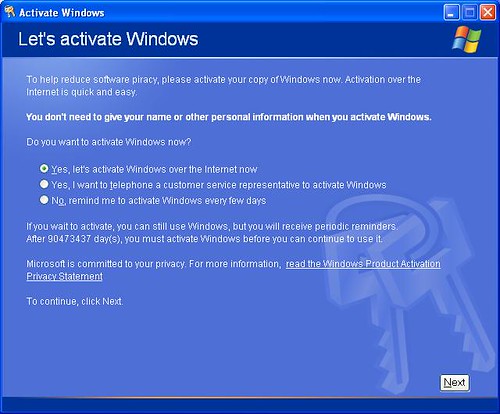
The time may come that you'll need to reinstall your Windows XP. It could happen. Maybe you'll add a new motherboard or hard drive. Maybe you'll get constant errors and problems that just won't go away. Or perhaps you're a neat freak who wants to rid yourself of clutter and start fresh with a clean operating system. If you do reinstall Windows XP, then you'll need to re-activate it too; that is, unless you keep this tip handy.


See, the first time you activated XP it created a file called "wpa.dbl" that lives in the WINDOWS\system32 folder. By creating a backup of this file on disk, you can simply put it back into the folder after reinstalling XP and avoid the whole re-activation hassle. Here's how...

    * Go to My Computer then select your hard drive (usually drive C). Go to the WINDOWS\system32 folder and scroll way down until you find the wpa.dbl file.
    * Right-click and choose "Send To" then either floppy disk (make sure you have a disk in), flash disk or CD-R/RW.


Now, when you reinstall Windows XP you'll come to the activation screen, decline to activate and let the install finish.
Restart your computer in Safe Mode (keep hitting F8 at start-up then when the Advanced Boot Options menu appears arrow down to Safe Mode).

Find your way back to the WINDOWS\system32 folder. It's a good idea to rename the wpa.dbl file you're replacing just in case you run into problems, so call it something like "wpa.nothing".

Get the backup disk and copy the old wpa.dbl file back to the WINDOWS\system32 folder and reboot.

There you go, your XP is up and running again.

Note: Your wpa.dbl file might NOT WORK on another computer.